Remote Timelapse Monitoring for Long-Term Construction Projects
Remote timelapse helps construction teams detect failures early, reduce site visits, and manage long-term camera deployments more reliably.
Part of the series · Long-Term Construction Timelapse GuideConstruction Timelapse for Long-Term Outdoor Projects: The Professional Guide (Months to Years)
Quick answer
Remote monitoring for a construction camera answers one question every day: is the camera still delivering images? In TLR-Cloud, a daily upload check runs at a time you set yourself and sends you an email if images are missing. An image of the day lands in your inbox, so you can see at a glance whether the view is still clear. Both are included in the Free plan: free for every camera, with 2 GB of storage per camera.
In long-term visual documentation, the hard part is rarely the first image. It is noticing, months later, that the camera has quietly stopped. A camera can be mounted well and framed perfectly and still lose power, drop its connection or run out of storage – while looking completely normal from the outside. If nobody notices for three weeks, those three weeks are missing from the timelapse. On a construction site, they cannot be reshot.
This guide explains what remote monitoring of a construction camera really involves, which signals matter, and how TLR-Cloud handles it: the daily upload check, the image of the day, the dashboard and what each plan includes. It is about whether your timelapse camera is working – not about video surveillance against theft or break-ins.
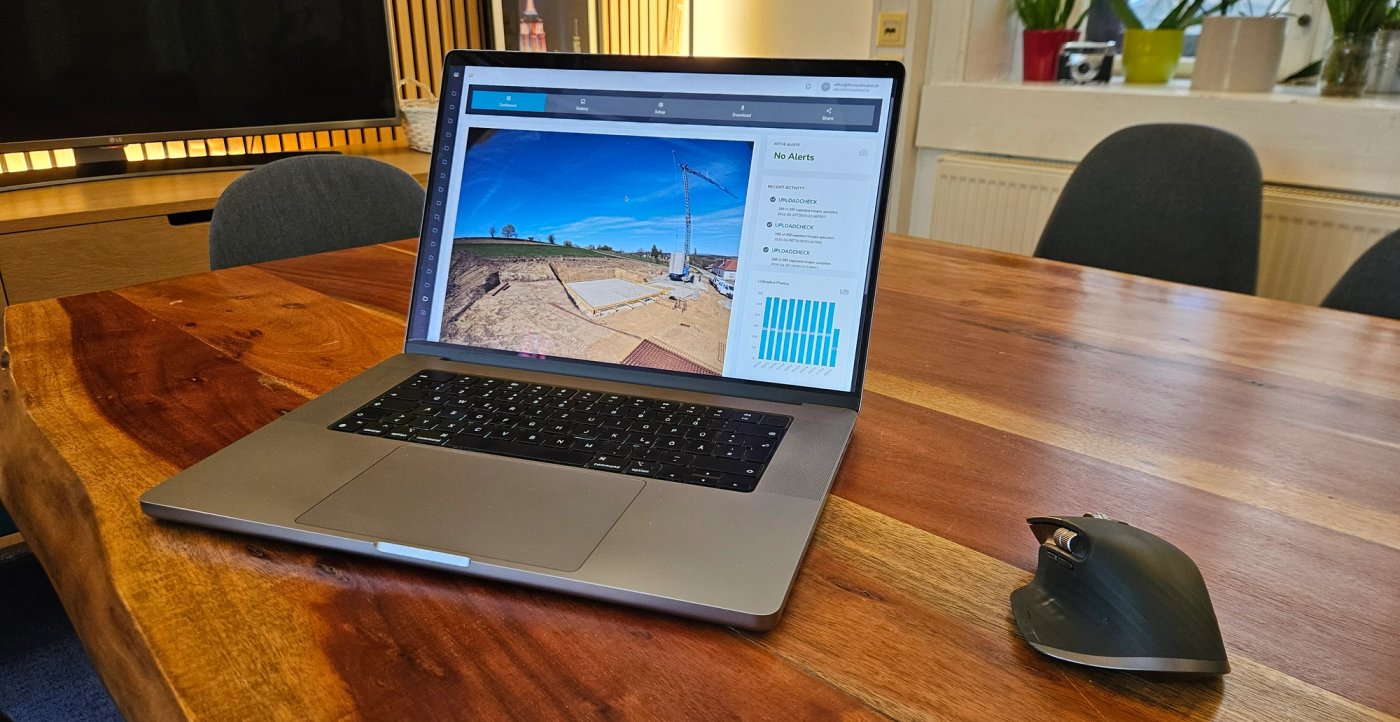
Why do timelapse cameras fail unnoticed on long projects?#
Many timelapse setups are planned around installation day: camera, mounting, interval, storage. Far less thought goes into how the system will be supervised over the following months or years. For a broader look at system design, environmental risk and operational discipline in long-term deployments, see our long-term outdoor construction timelapse guide. If a fixed network camera is on your shortlist, see our guide to the best IP camera for construction monitoring.
The typical causes of a gap are mundane: a power cut, a router or modem that does not reconnect after an outage, a full memory card, a changed camera setting, a camera knocked out of position, a lens obscured by spider webs or condensation, or a view blocked by a crane boom. For stable mains power, backup options and recovery after interruptions, read our guide to timelapse camera power supply for long-term construction projects. The most common failures and how to prevent them are collected in our article on construction timelapse problems.
What these causes have in common is that the installation still looks fine from the outside. Without a remote check, the team only finds out at the next site visit or when the files are downloaded – and by then the gap is permanent.
What does remote monitoring of a construction camera involve?#
Three things have to work together:
- The images leave the site regularly – over 4G, site Wi-Fi or fixed internet – and arrive in a central archive. How this works with IP cameras is explained in our guide to camera FTP upload for long-term projects and in how to turn an IP camera into a construction timelapse system.
- Something checks automatically whether enough images have arrived – and tells you when they have not.
- You can see the latest image without travelling to the site, so you can check the view, not just whether the camera is alive.
A live view on its own is not enough: it only helps if someone remembers to open it every day. If you are comparing the two most common connected approaches, see our IP camera vs GoPro timelapse comparison. If you are still choosing hardware, our guide to the best camera for construction timelapse helps.
The daily upload check: how the outage alert works#
In TLR-Cloud, the 24-hour upload check runs once a day at a time you set yourself. It counts the images the camera has uploaded in the last 24 hours and compares that number with the minimum you have entered. If fewer images have arrived, you get an email. You can also choose the days of the week on which the check runs.
How to choose the minimum: a camera that takes a photo every 10 minutes between 7 am and 7 pm delivers about 72 images a day. Set the minimum a little lower, for example 60, so that a single missing image does not trigger an email, but an outage lasting several hours does. Set the check time after the end of the working day – then you know the same evening whether today's images are complete.

The notification settings: time, days and minimum number of images for the upload check, plus the time for the image of the day.
The upload check is not a live alarm. If a camera stops in the morning, you hear about it at the next check. But you hear about it within a day – not at the next site visit, weeks later. Images can also go missing because your cloud storage is full: once the quota is reached, uploads stop. Nothing is deleted automatically, and you get an email before your storage runs out.
Every check is also logged in the web app. Alerts appear in the dashboard, where you can mark them as read, and the recent activity shows the result of each check.
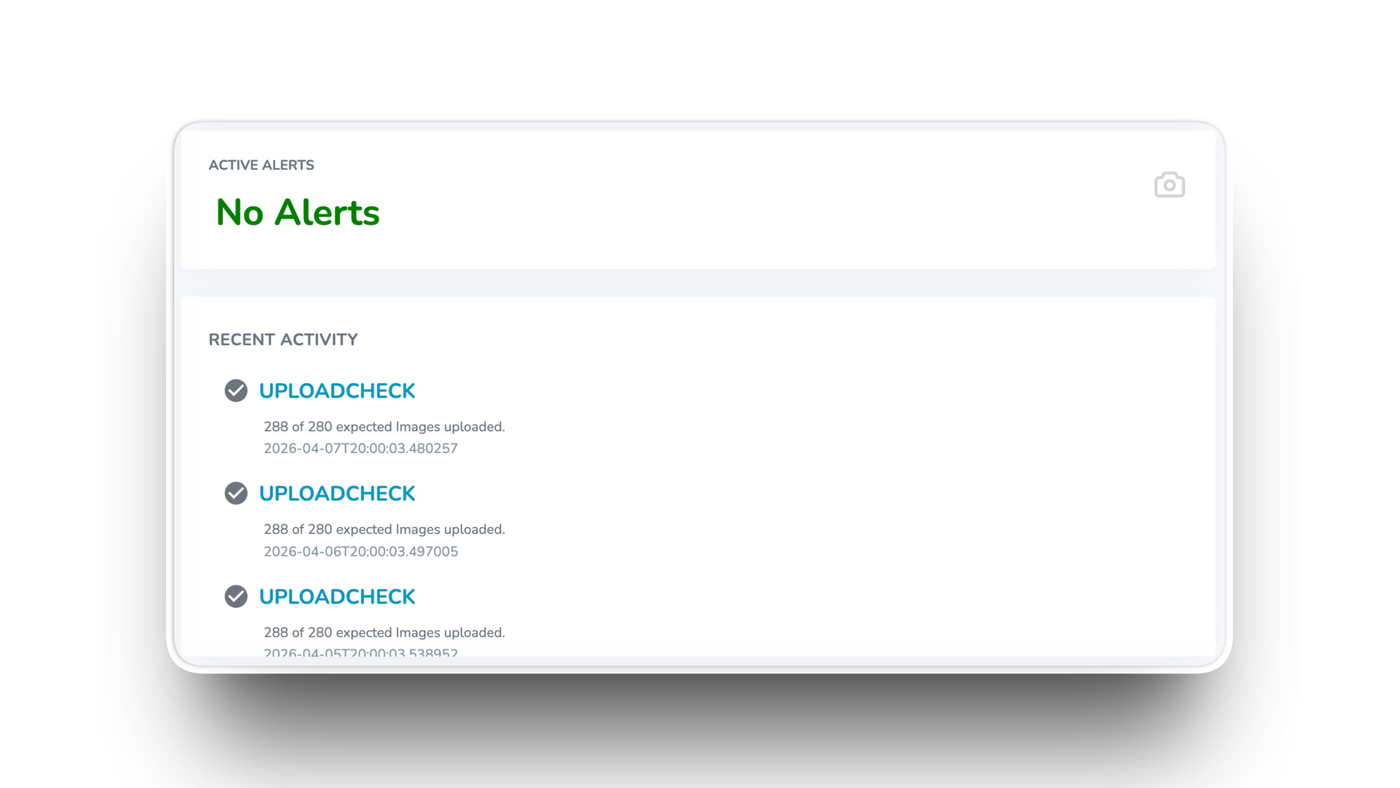
TimelapseRobot dashboard showing camera status and alert-based monitoring for long-term timelapse projects.
Image of the day: is the view still clear?#
The upload check tells you that images are arriving. It does not tell you whether they are usable. A spider web in front of the lens, a fogged-up housing, a crane parked in the frame or a camera that has been turned slightly – the images still arrive, but they are of little use for the timelapse.
The image-of-the-day email sends you a current photo at a time you choose. One glance in your inbox is enough; you do not need to log in. Pick a time with good daylight, such as midday, so you can judge the view properly. The emails put the most important information first, and some include a button that takes you straight to the dashboard.

With Professional and Business, notifications and the image of the day can go to several email addresses – for example to the site manager and to the person responsible for project marketing.
Smartphones as cameras: battery and offline alerts#
If you use a smartphone with the TimelapseRobot Android app as your camera, two more alerts are available. The low-battery warning emails you when the battery drops below a level you set. The instant offline notification emails you when the phone loses its connection for longer than a grace period you set. Both are included in the Free plan.
The dashboard: every camera and every site in one view#
All cameras and projects appear in one dashboard. For each camera, it shows the latest image, statistics and the gallery with the full archive, and you can create as many projects as you need. Instead of checking cameras one by one, you can see at a glance when the last image arrived and which camera needs attention. This is especially useful for teams running several sites at once, and for agencies looking after cameras for different clients.
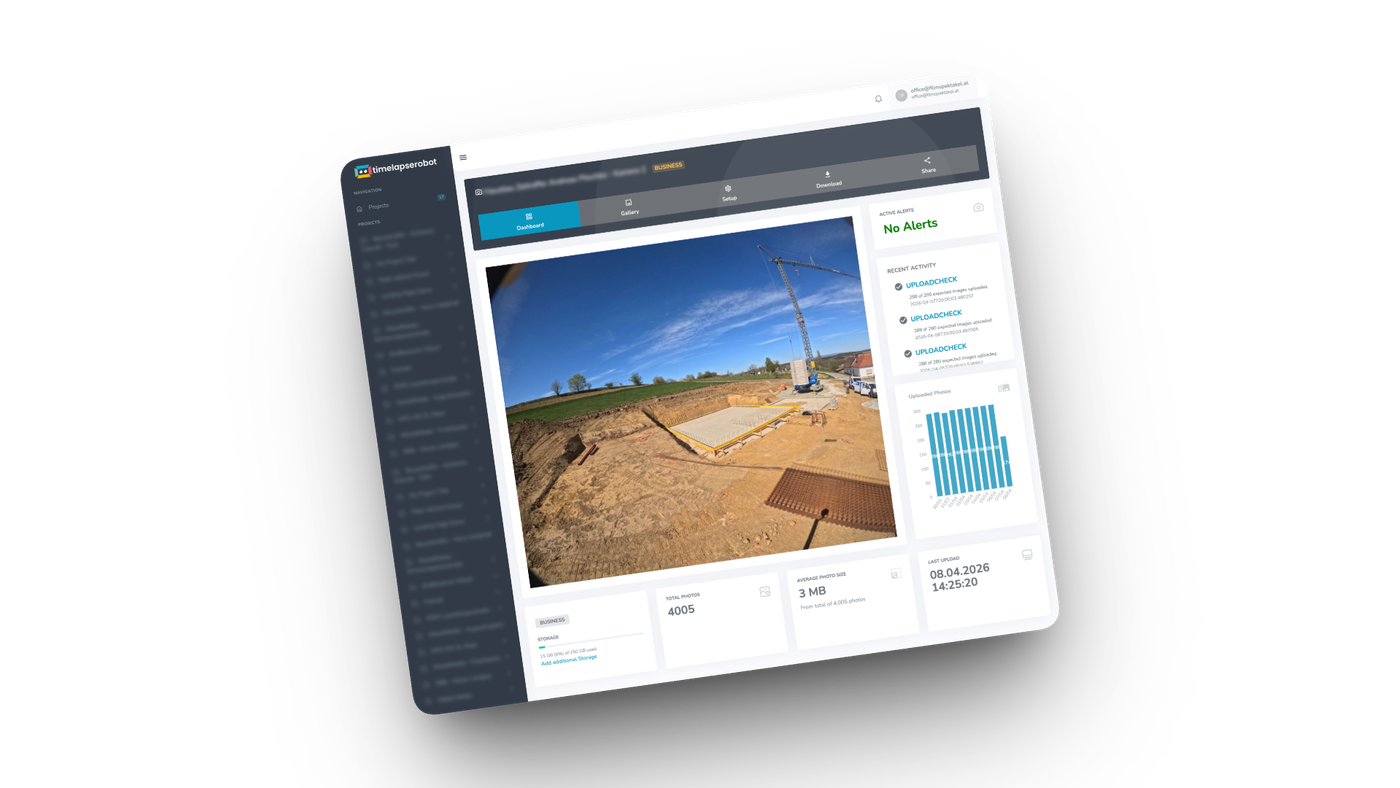
A clean dashboard showing the most important information at a glance.
This matters even more at scale. At Bauzeitraffer.at, we have been filming construction timelapses since 2013, with more than 20 cameras running across different sites at the same time. Checking a camera once a day sounds simple. Checking more than 20 cameras 365 days a year is a completely different task. That experience taught us that monitoring should not depend on people reading routine reports every day. It should run automatically and only alert the team when something is actually wrong. Otherwise, the reports become background noise, people postpone reading them, and real problems are spotted too late. That is the idea behind the upload check.
Which features are in which plan?#
| Feature | Free | Professional | Business |
|---|---|---|---|
| Daily upload check with email if images are missing | ✓ | ✓ | ✓ |
| Image of the day by email | ✓ | ✓ | ✓ |
| Dashboard with alerts in the web app | ✓ | ✓ | ✓ |
| Battery and offline alerts (smartphones) | ✓ | ✓ | ✓ |
| Notifications to several email addresses | – | ✓ | ✓ |
| Sharing page per camera (called Landing Page in the app) | – | ✓ | ✓ |
| Latest image embedded on your website | – | ✓ | ✓ |
| Storage per camera | 2 GB | 150 GB | 250 GB |
| Price per camera per month | €0 | €29 net | €49 net |
Monitoring itself is free for every camera, with 2 GB of storage per camera. Extra storage is available with Professional and Business: 100 GB for €5 net per month. Paid plans can be cancelled monthly; your plan runs until the end of the paid month. All details are on our pricing page and in the full feature list.
How to set up monitoring for your camera#
- Connect the camera: An IP camera uploads its images via FTP – you can connect it to TLR-Cloud for free, with no new hardware. Our list of supported cameras shows which brands work and where to find the FTP setting; there are step-by-step guides for Hikvision and Reolink. A GoPro connects through the TLR-Bridge; see our GoPro construction timelapse long-term setup guide.
- Set up the upload check: days, a check time after the end of the working day, and a minimum number of images slightly below your daily count.
- Turn on the image of the day at a time with good light.
- Add more email addresses if other people should be informed too (Professional and Business).
- Check the dashboard after the first day to see whether the upload check shows the number of images you expected.
More guides are in our help center. Our internet outage test shows what a short interruption looks like from the platform's side – and how a buffering camera closes the gap on its own.
Summary: fewer site visits, fewer gaps#
Remote monitoring turns a camera installation into a system you can supervise. Instead of travelling to the site just to check that the camera is still running, you get an email when images are missing and see the current view in your inbox every day. Site visits are reserved for installation, maintenance and genuine problems. How this affects workload and budget is covered in our guide to construction timelapse costs. For the full process from camera capture to the final video, see our guide to construction monitoring camera timelapse.
Frequently asked questions
- How do I know my construction camera is still working without visiting the site?
- Through an automatic check and a daily image. In TLR-Cloud, the daily upload check runs at a time you set yourself and sends you an email if images are missing. The image of the day shows you the current view in your inbox, so you can also spot a blocked or misaligned camera. The dashboard shows when the last image arrived for every camera.
- How does the outage alert work in TLR-Cloud?
- Once a day, at a time you choose, the upload check counts the images uploaded in the last 24 hours. If the number is below the minimum you have set, you get an email. You can also choose the days of the week on which the check runs, and every result is listed in the web app.
- Will I be alerted as soon as the camera stops?
- For IP cameras, you find out at the next daily upload check – so within a day, not weeks later at the next site visit. An instant alert is only available for smartphones used as cameras: the offline notification emails you when the phone loses its connection for longer than a grace period you set.
- Is camera monitoring included in the free plan?
- Yes. The daily upload check, the image of the day, the dashboard and the smartphone alerts are included in the Free plan: free for every camera, with 2 GB of storage per camera. Professional (€29 net per camera per month) adds notifications to several email addresses, a sharing page per camera and 150 GB of storage per camera.
- Can one dashboard monitor several construction sites at once?
- Yes. All cameras and projects appear in one dashboard, and you can create as many projects as you need. You can see at a glance which camera has delivered images and which one needs attention.
- Is this the same as video surveillance of the construction site?
- No. Monitoring in TLR-Cloud checks whether your timelapse camera is delivering images and whether the view is clear. It does not monitor the site for theft or break-ins.
Planning a long-term construction timelapse?
Discover the system built for multi-month and multi-year construction deployments.
Explore the Construction Timelapse System

