AI-Powered Blurring for Privacy in Photos and Timelapse Videos
Two ways to blur what your construction camera shouldn't show: Area Blur hides fixed areas on every plan; AI blurring hides people and vehicles on Business.

Construction cameras often capture more than the building: the windows of the house next door, the street, a parking lot, people at work. TimelapseRobot has two tools to blur these parts of your images: Area Blur for fixed areas, included in every plan (including Free), and AI blurring for people and vehicles, included in the Business plan. Here's what each one does, how to set it up and which plan you need.
Quick answer
TimelapseRobot has two blurring features. Area Blur uses a mask to blur fixed areas such as a neighbor's window or a street, and it's included in every plan, including Free. AI blurring finds people and vehicles in every new image and blurs them automatically; it's part of the Business plan (€49 net per camera per month).
Area Blur or AI blurring: which one do you need?#
| Area Blur | AI blurring | |
|---|---|---|
| What gets blurred | Fixed areas you mark with a mask, e.g. windows, a neighboring yard, a street | People and vehicles, wherever they appear in the image |
| How it works | You upload a black-and-white mask: black gets blurred, white stays sharp | The AI detects people and vehicles; you set the sensitivity |
| Plan | Every plan, including Free | Business |
| Best for | Areas that never move | People and vehicles moving through the image |
Both work on every new image the camera sends, from the moment you switch them on. On Business you can combine them: Area Blur for the house next door, AI blurring for the people on site.
Area Blur: blur fixed areas (every plan)#
Area Blur is made for parts of the image that don't change: the windows of the house next door, a neighboring yard, a parking lot or a street. You mark these areas once with a mask, and TimelapseRobot blurs them automatically in every new image from that camera. You never have to edit a photo by hand.
Here's how to set it up:
- In the Gallery tab, download an image from the camera in its original resolution.
- In any image editor, paint the areas you want blurred black and everything else white.
- Export the mask as a PNG or JPG at exactly the same resolution as the original image.
- In the camera's Setup tab, open Image Manipulation, switch on Area Blur (labeled “Blur Area” in the app) and upload the mask.
- Save. From then on, every new image from this camera is blurred wherever the mask is black.
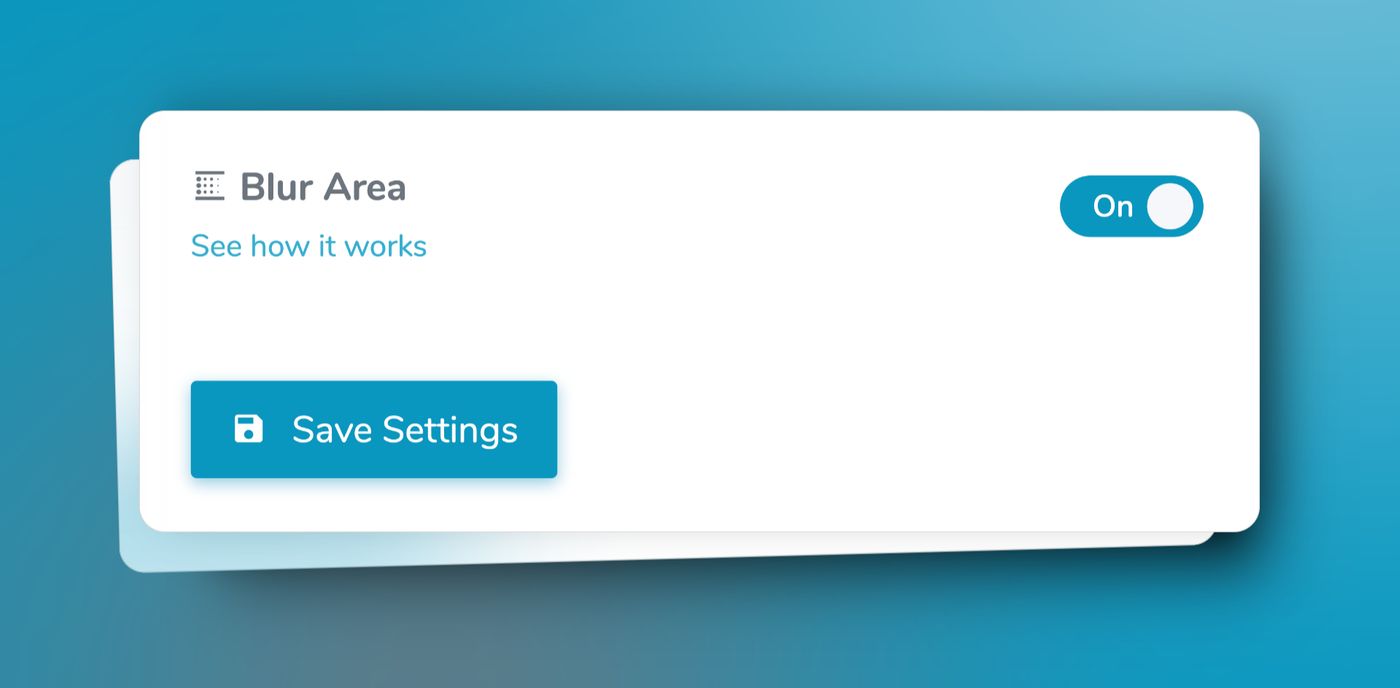
Our Area Blur guide in the Help Center explains each step in detail.
Keep in mind that the mask only fits this exact view. If you move or realign the camera, or change the image resolution, create a new mask.
AI blurring: people and vehicles (Business)#
People and vehicles don't stay in one place, so a fixed mask can't cover them. That's what AI blurring is for: it detects people and vehicles in every new image and blurs them automatically.
- AI Person Blur blurs every person the AI detects.
- AI Vehicle Blur blurs vehicles, and you choose which types: cars, trucks, buses, bicycles and motorcycles.
- For both, you set the detection sensitivity to low, medium or high: higher for broad blurring, lower for a more selective approach.
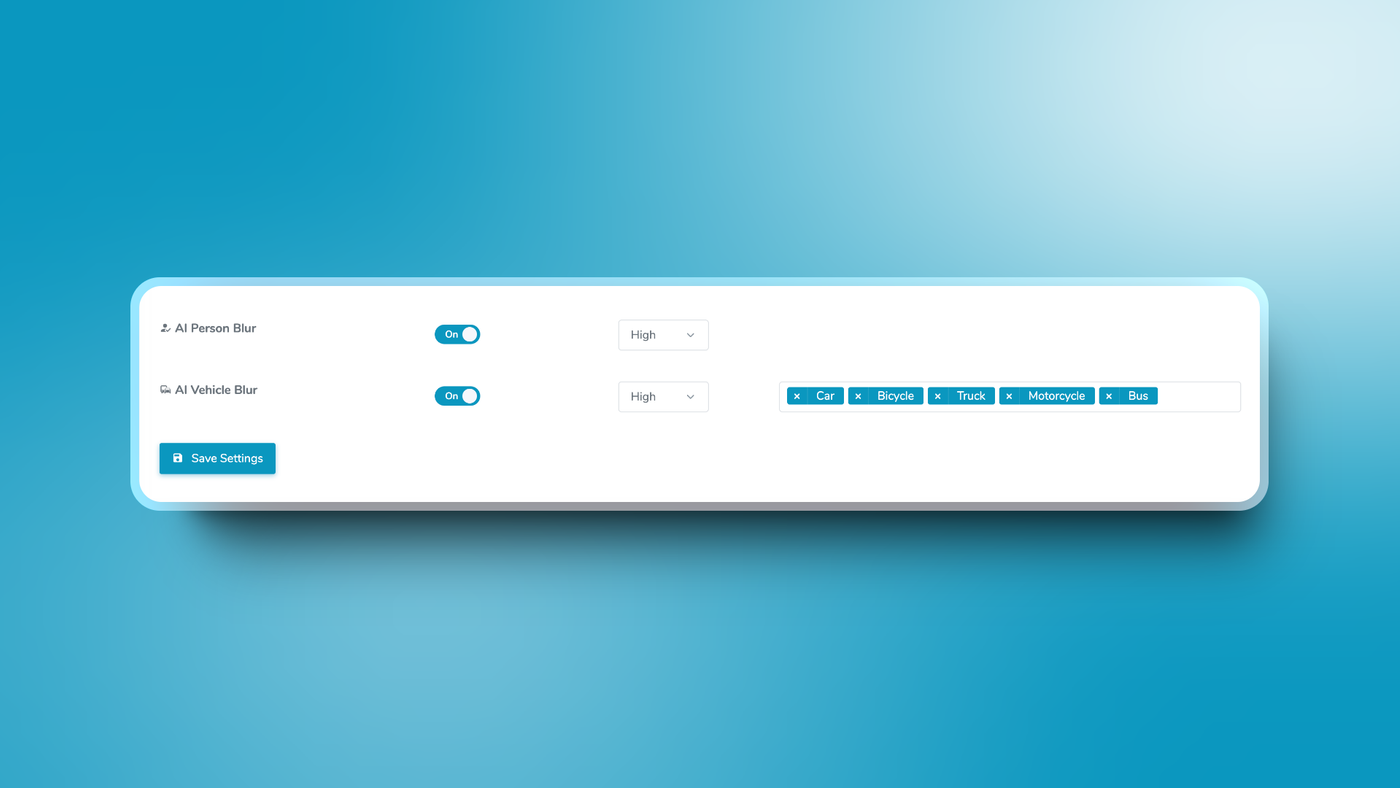
To switch it on, open the camera's Setup tab, turn on AI Person Blur, AI Vehicle Blur or both, choose the sensitivity and save. Then check the first few images and adjust the sensitivity if needed.
AI blurring is part of the Business plan (€49 net per camera per month). You choose the plan per camera, so you only need Business for the cameras that have people or traffic in view. Business also includes the AI image filter for visibility and time of day, unlimited video renderings and custom branding for the sharing page (called Landing Page in the app).
When the blur applies and where you see it#
Area Blur and AI blurring apply to every new image from the moment you switch them on. So switch on AI blurring before the camera starts sending images. Area Blur needs an image to draw the mask on, so set it up as soon as the first image has arrived. Everything blurred by Area Blur or AI blurring stays blurred in your rendered timelapse videos, on the sharing page and in the latest image embedded on your website.
Is a camera on a construction site allowed at all?#
This article covers the technical side. Whether and how you may film a construction site, and what that means for workers, neighbors and passers-by, is a legal question that depends on your country and your project. We can't give legal advice here. For Austria, our sister service bauzeitraffer.at explains the rules in Is a camera allowed on a construction site? Elsewhere, check with a lawyer or your local data protection authority.
Get started#
Area Blur is already part of the Free plan, which is free for every camera, with 2 GB of storage per camera. Already have an IP camera? Connect it for free and set up your first mask today. For AI blurring, compare the plans: Business adds blurring for people and vehicles.
Get started
Ready to capture your construction project in timelapse?
Get the complete weatherproof kit — or start free with your own FTP/IP camera.


