TLR-Bridge manual
The complete manual for the TLR-Bridge GoPro controller: LEDs and ports, GoPro setup, the local setup page, internet, shootplan and file management.
1. Introduction#
1.1 What the TLR-Bridge does#
The TLR-Bridge is a dedicated controller for GoPro cameras used in time-lapse applications. It:
- powers and controls the GoPro
- resets the GoPro automatically if it freezes
- allows detailed scheduling of shooting times
- uploads photos to your TimelapseRobot account
- saves all photos locally to an SSD (optional)
- operates via Wi-Fi or LTE
- provides a local configuration page accessible from any phone, tablet or laptop
The device is designed for simplicity and long-term reliability.
1.2 Buttons, LEDs and ports overview#
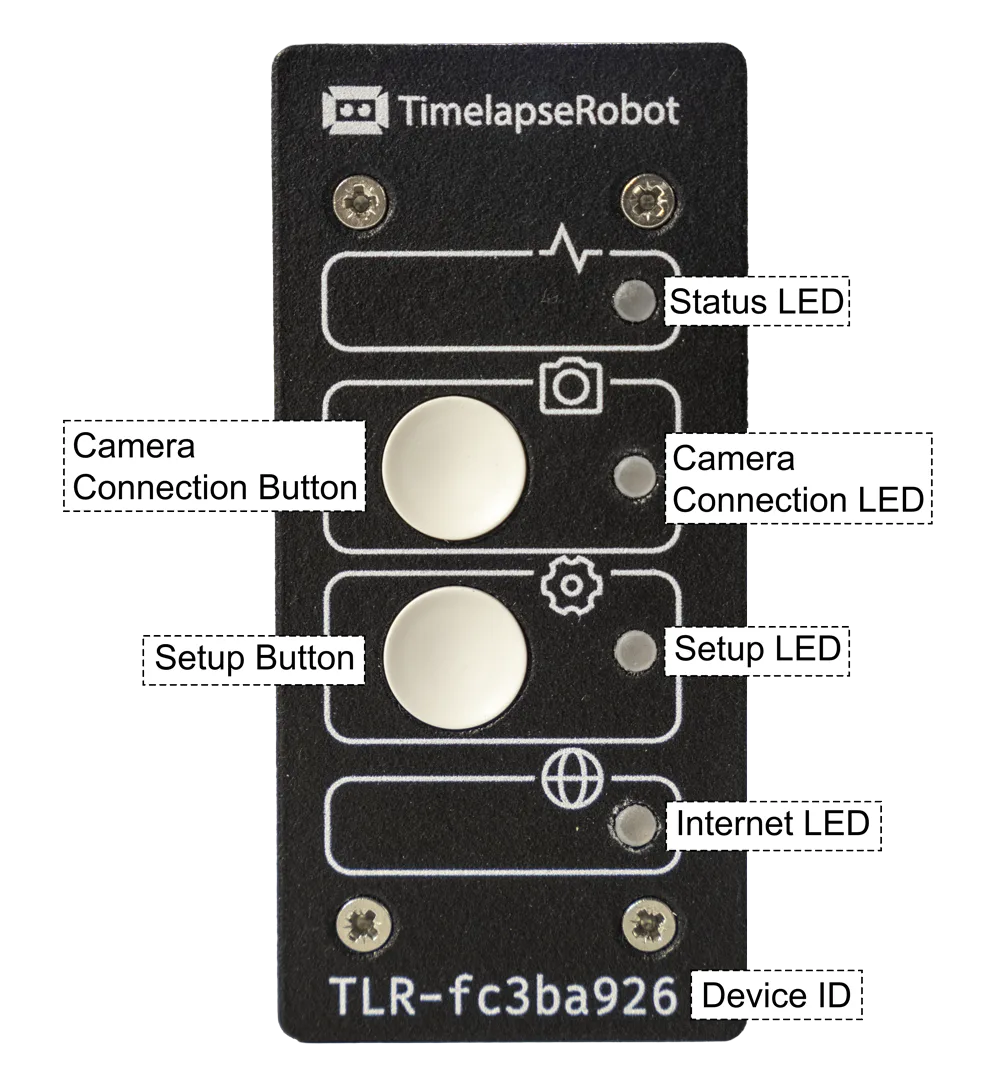
Status LED — indicates the general operating state:
- Blue, then briefly yellow: TLR-Bridge is starting
- Solid green: ready for operation
- Red: an error has been detected
- Any solid color: the device is receiving power
Camera Connection Button — switches the GoPro on. It stays on for 10 minutes. Press the button again to switch it off.
Camera Connection LED — indicates the GoPro state:
- Blinking green: GoPro is switching on or off
- Solid green: GoPro is on
- Off: GoPro is off and gets no power
Setup Button — opens and closes the local setup page.
Setup LED — shows whether the local setup page is open:
- Off: normal operation
- Solid green: local setup page is open
Internet LED — indicates internet connection status:
- Solid green: online via Wi-Fi
- Blinking green: online via mobile data (LTE)
- Solid red: no internet connection (also while the local setup page is open)
Device ID — printed on the front of the device. Used to access the local setup page and to link the device to your TimelapseRobot account.
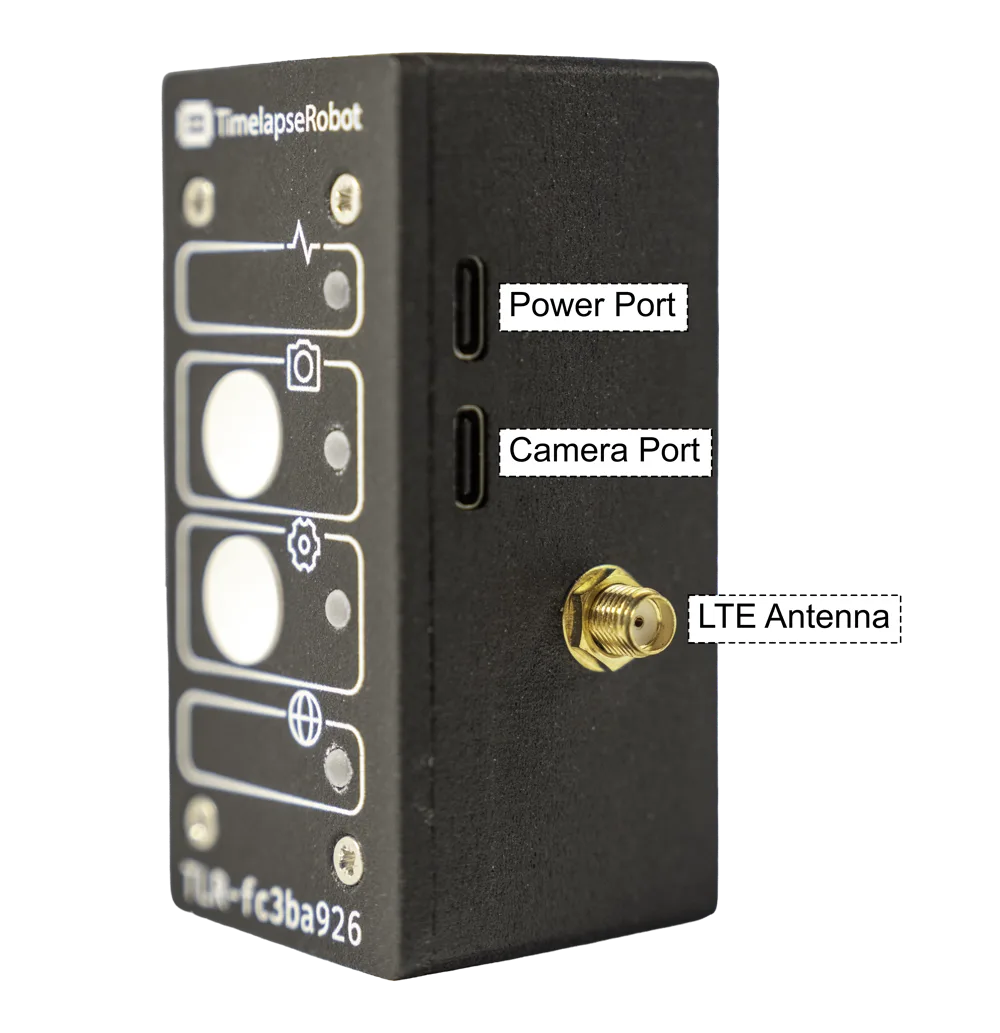
Ports:
- Power Port — connect the supplied power supply here (see 2.4).
- Camera Port — supplies the GoPro with power and downloads photos.
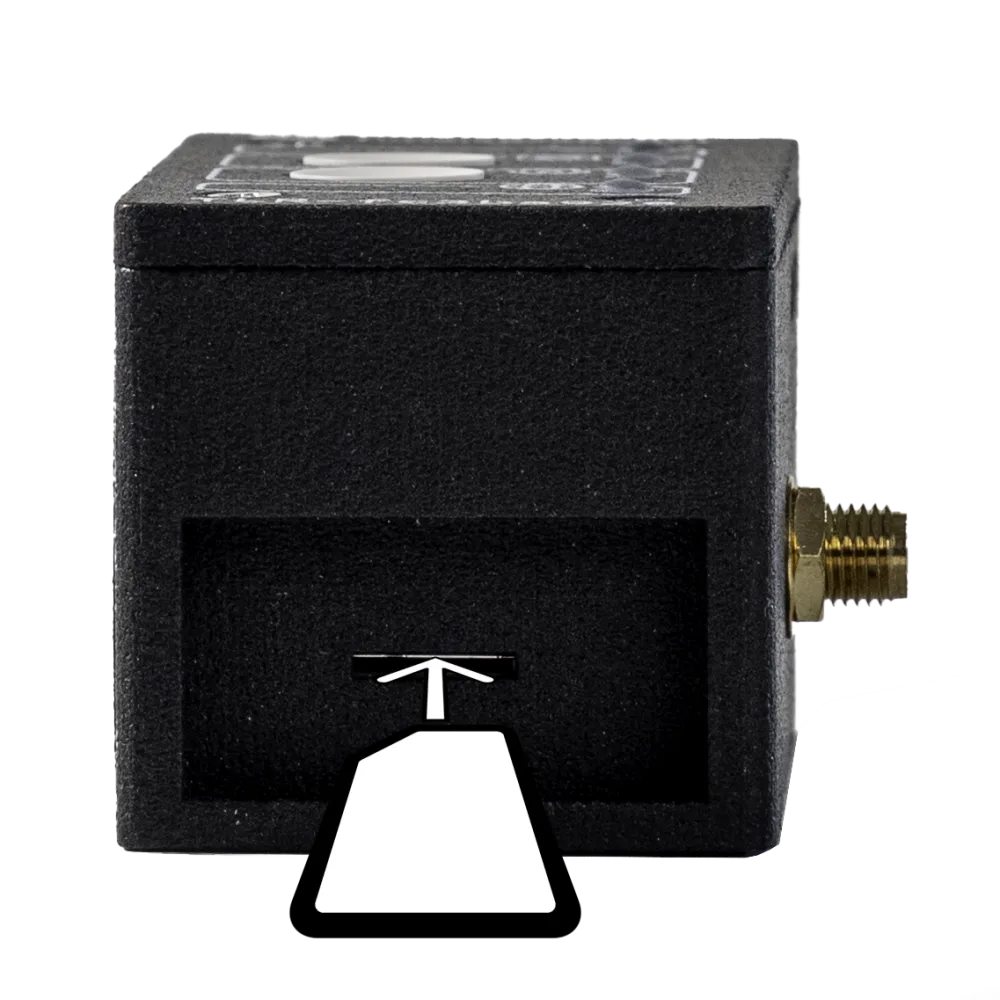
- LTE Antenna — attach the LTE antenna if using a SIM card for mobile data.
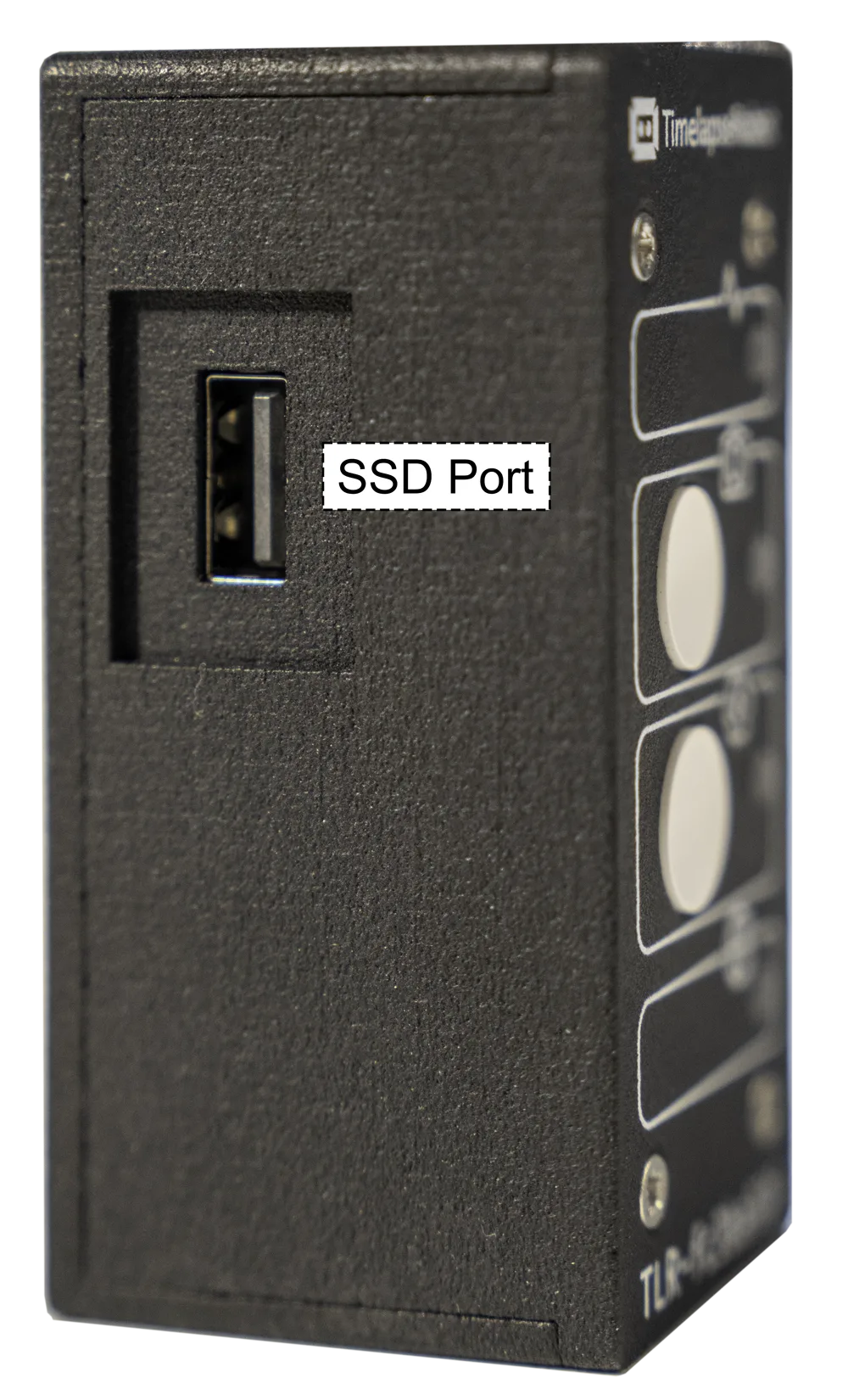
- SSD Port — connect an SSD here for local backup storage.
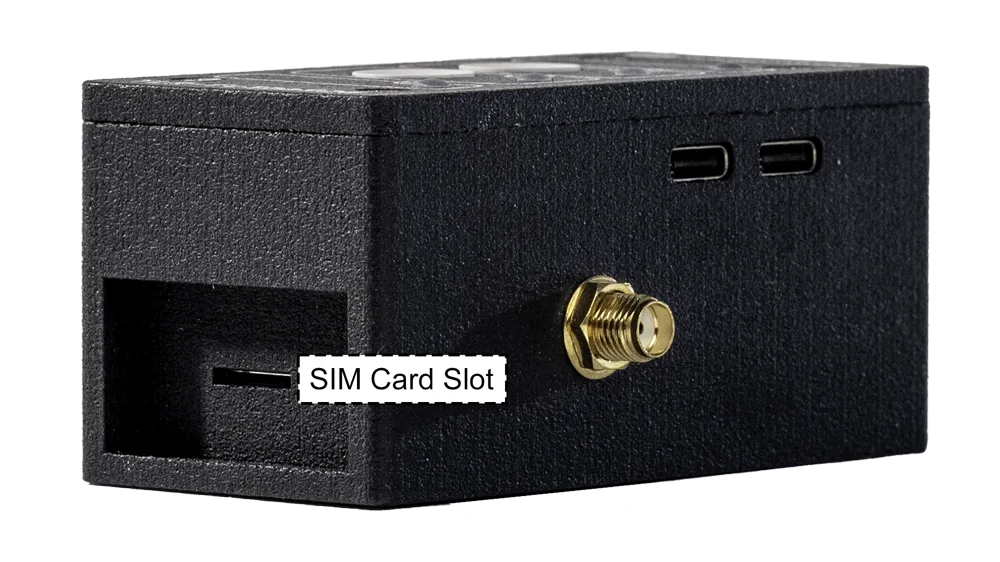
- SIM Card Slot — insert a nano SIM card for LTE use.
2. Getting started#
2.1 What's in the box#
TLR-Bridge:
- TLR-Bridge
- LTE antenna
- power adapter
- extension cable
- converter
- USB-C cable (GoPro)
Complete bundle: the same parts, plus the GoPro and the case. GoPro and TLR-Bridge come pre-installed and connected in the case. If you bought the complete bundle, skip 2.3 and continue with 2.4. Before connecting power, remove the GoPro battery.
2.2 What you need#
- a GoPro HERO12 Black or HERO13 Black with a microSD card inside
- the GoPro battery, charged to at least 50% (only needed to install GoPro Labs)
- the supplied power supply
- a smartphone, laptop or tablet with a web browser (Chrome, Safari, Firefox, Edge, etc.)
- optional: a nano SIM card for LTE
- optional: an SSD for local storage backup
- optional: a TimelapseRobot account
2.3 Preparing the GoPro (TLR-Bridge only)#
Only if you bought the TLR-Bridge without a GoPro. The TLR-Bridge works with GoPro HERO12 Black and HERO13 Black.
Install GoPro Labs:
- Download the GoPro Labs firmware for your camera model at gopro.github.io/labs.
- Unzip it and copy the folder `UPDATE` to the top level of the microSD card. Copy the folder, not the .zip file. Its name must stay `UPDATE`.
- Insert the card and switch the GoPro on (battery at least 50%).
- Done when the GoPro installs the update and shows the check mark.
Problems? See gopro.github.io/labs/install.
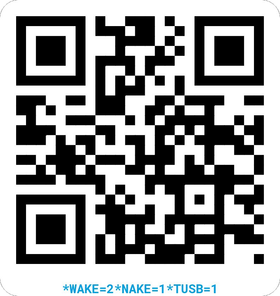
HERO12 Black only:
- Switch the GoPro on and scan this QR code with it. It is also printed in step 1 of the Quick Start Guide.
- Done when the GoPro briefly confirms the code.
Connect the GoPro to the TLR-Bridge:
- Connect the GoPro to the Camera Port using the supplied USB-C cable.
- Connect the power supply (see 2.4) and plug it into a socket. Wait until the Status LED is solid green.
- Switch the GoPro on once with its own power button.
2.4 Powering the GoPro from the TLR-Bridge#
Required for all users.
- Remove the GoPro battery. From now on, the TLR-Bridge powers the GoPro.
- Connect the power supply in this order, if not done yet: power adapter → extension cable → converter → TLR-Bridge (Power Port). Plug it into a socket.
- The Status LED lights up blue, then briefly yellow. Wait until it is solid green: the TLR-Bridge is ready.
- Switch the GoPro on with the Camera Connection Button. The Camera Connection LED blinks green and then stays solid green: the GoPro is on. It stays on for 10 minutes. Press the button again to switch it off.
Never mount with the battery inside. Otherwise the TLR-Bridge cannot restart the GoPro by cutting its power, e.g. if it freezes.
Important: only use the supplied power supply.
If the Status LED stays red, restart the device. If the issue persists, contact support.
3. Local setup page#
The local setup page is the configuration interface of the TLR-Bridge. You can access it from any device with a web browser (Chrome, Safari, Firefox, etc.). Internet is not required for this process.
3.1 Accessing the local setup page#
- Press the Setup Button.
- The Setup LED turns solid green. The Internet LED becomes red because the internal Wi-Fi hotspot has no internet.
- On your phone, laptop or tablet, open your Wi-Fi settings and connect to the network named after your Device ID (e.g. tlr-fc3ba926). Stay connected to this network, even if your device says "No internet". Smartphone users: disable mobile data to avoid interference.
- Open a web browser (Chrome, Firefox, Safari, etc.).
- Enter the address [Device ID].local — for example, tlr-fc3ba926.local
- Enter your password. You can find the default password on the back of the printed Quick Start Guide.
To close the local setup page, press the Setup Button again.
3.2 Setting the timezone#
The timezone is used for schedules and photo timestamps. A pop-up reminder appears the first time if no timezone is set.
- Open Device Settings.
- Select the timezone.
- Click Submit.
- Done when the page confirms that the timezone is saved.
3.3 Changing the password#
- Go to Device Settings → Change Password.
- Enter the current password.
- Enter a new password.
- Confirm the new password.
- Click "Change my password".
- Wait for confirmation.
4. Connecting the TLR-Bridge to the internet#
Internet enables remote control, automatic uploads and online monitoring. The TLR-Bridge can connect via LTE or Wi-Fi. Choose one of the two.
4.1 LTE connection#
- Insert a nano SIM card into the SIM Card Slot.
- Attach the LTE antenna.
- Restart the TLR-Bridge (unplug and replug the power supply).
- When LTE is active, the Internet LED blinks green.
4.2 Adding a Wi-Fi network#
- Open the local setup page.
- Navigate to WiFi.
- View the available networks.
- Under "Add Connection", enter the SSID (Wi-Fi name) and password.
- Click Add.
- Close the local setup page by pressing the Setup Button.
- When connected via Wi-Fi, the Internet LED becomes solid green.
4.3 Deleting a Wi-Fi network#
- Open the local setup page.
- Go to WiFi.
- Under "Connections", click Delete.
5. Camera control#
5.1 Camera settings#
Power Off Between Shots:
- Yes (recommended): the GoPro powers off after each shot for more stable long-term operation.
- No: the GoPro stays powered — not recommended for long-term time-lapse.
Click Submit to save changes.
5.2 Shootplan#
The shootplan controls when and how often the GoPro takes photos.
To create a shootplan:
- Select the active weekdays (blue = active).
- (Optional) Enable "Set Start/Stop Time" and choose a time window.
- Set the interval (seconds or minutes).
- Click Submit.
Example — active: Tuesday, Wednesday; time: 08:00–22:00; interval: 5 minutes. The GoPro automatically wakes up, shoots and powers off according to these rules.
6. File management#
6.1 Auto-delete after successful transfer#
- Open the local setup page.
- Go to File Management → Camera Storage.
- Enable "Auto-delete from camera SD card after successful transfer".
- Click Submit.
This prevents SD card overflow.
6.2 Cloud uploads#
- Open File Management → Cloud Strategy.
- Set Upload Mode to Instant.
- Choose the upload frequency:
- 1: upload every photo
- 2: upload every second photo
- 3: upload every third photo, and so on
- Click Submit.
6.3 Local backup to SSD#
- Format the SSD to exFAT.
- Connect the SSD to the SSD Port.
- From this moment on, every new photo is saved to the SSD, independent of the cloud upload frequency.
7. Device management#
7.1 Factory reset#
- On the setup page login screen, click "Reset to factory settings".
- Confirm the warning.
- Wait for the operation to complete.
- If linked to TimelapseRobot, unlink the TLR-Bridge in your TimelapseRobot account before linking it to another project.
After a factory reset, log in with the default password from the back of the printed Quick Start Guide.
7.2 Connecting to the TimelapseRobot web interface#
- Log in at my.timelapserobot.com.
- Open your project and click Add Camera.
- Select GoPro Camera and name it.
- Choose a subscription plan.
- Enter the Device ID (without "TLR-").
- Click Add Camera.
- The system asks you to bring the device online.
- Once the TLR-Bridge is online, the page refreshes automatically.
Your device is now ready for remote use.
Get started
Ready to capture your construction project in timelapse?
Get the complete weatherproof kit — or start free with your own FTP/IP camera.